http://easycators.com — More of Josiah’s TOS trading resources New thinkorswim tutorial on how to program your own stock, futures, or forex trading strategy and then backtest it using thinkorswim. The thinkorswim platform by TD Ameritrade provides some great scripting capabilities for indicators, custom quote columns, scans, and even full forex trading strategies. In this video, Josiah creates a simple think or swim strategy that can be applied to forex, futures, or stocks, and shows you step-by-step how to start from scratch and implement your own algorithmic trading strategy in thinkorswim. This thinkorswim tutorial is applicable to forex trading strategies as well as stocks, ETFs, and futures trading systems. In this tutorial video, Josiah starts with a blank slate and adds inputs, variables, explains buy conditions, how to reference studies and indicators, and how to setup and use orders in TOS. To find out more about how to maximize your ThinkOrSwim platform, check out my website at http://easycators.com
Download ThinkOrSwim Paper Money and signup to demo trade with the professional trader tools from TD Ameritrade. Paper trading is available for free for 60 days for those without a funded TOS account, and is included for free with any funded account.
Think Or Swim Paper Money includes all kinds of free indicators already installed and ready to use. You can also download and install premium indicators from SWIMdicators if you need some additional trading tools.
ThinkOrSwim’s paperMoney demo trading platform includes almost all the same features as the main “real money” trading platform. The main difference is that in Paper Money the market data is delayed by about 20 minutes. So the latest bars on your chart will be older bars — they won’t be the real time current market data.
Other than that, though, the platform is great, and it allows you to test almost any product, instrument, strategy, indicator, etc., just like in the real money program.
Once you’ve perfected your strategy over a series of sample trades, now it’s time to logout of think-or-swim, switch over to “live trading,” and make some REAL money!
Scanning with Options Hacker: A ThinkOrSwim Tutorial
I noticed that there is not very much information out there on the Options Hacker scanner for TOS. Because of that, I wanted to do a quick ThinkOrSwim tutorial on Options Hacker and at least note some of the differences between it and Stock Hacker to clear up some of the confusion. This article will explain the basic features of Options Hacker, and the steps to setting up a custom option scan in Think-Or-Swim. It also notes the differences between the Stock Hacker and Options Hacker scanners.
Options Hacker Differences
So why can’t you just use Stock Hacker? Well, you can, and sometimes it may be easier. But Options Hacker is good for keeping the two types of scans separate and keeping your settings the same when switching back and forth between trading and analyzing the two.
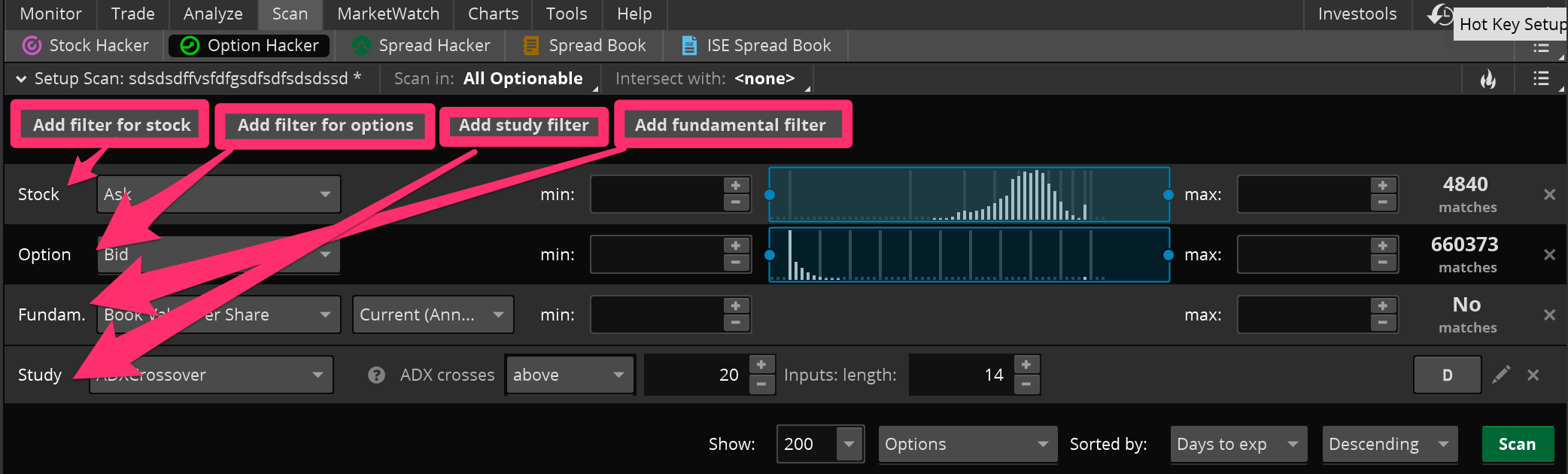
In Options Hacker, you will still be filtering down a list of stocks first of all, just like in Stock Hacker. You can use all your normal filters: price, volume, average volume, price performance, etc. You can even add custom study filters here for the underlying stocks. It’s important to note that the study filters only work for the stocks. You can’t currently program any custom studies to use for option filters. You can use the new Fundamental Filters they just recently made available in TOS. These can be very helpful for you value investors and longer-term traders out there.
After you get the stocks narrowed down to only the ones you would be interested in, now it’s time to filter down the stock options. Here you can add any option attribute available: open interest, delta, price, etc. You can’t currently scan for option bid-ask spread, but with a custom column I made, you can at least sort the results to show the lowest spreads at the top.
Thinkorswim Options Hacker: How to add different types of stock & option filters to your scan.
Saving Your Option Scan
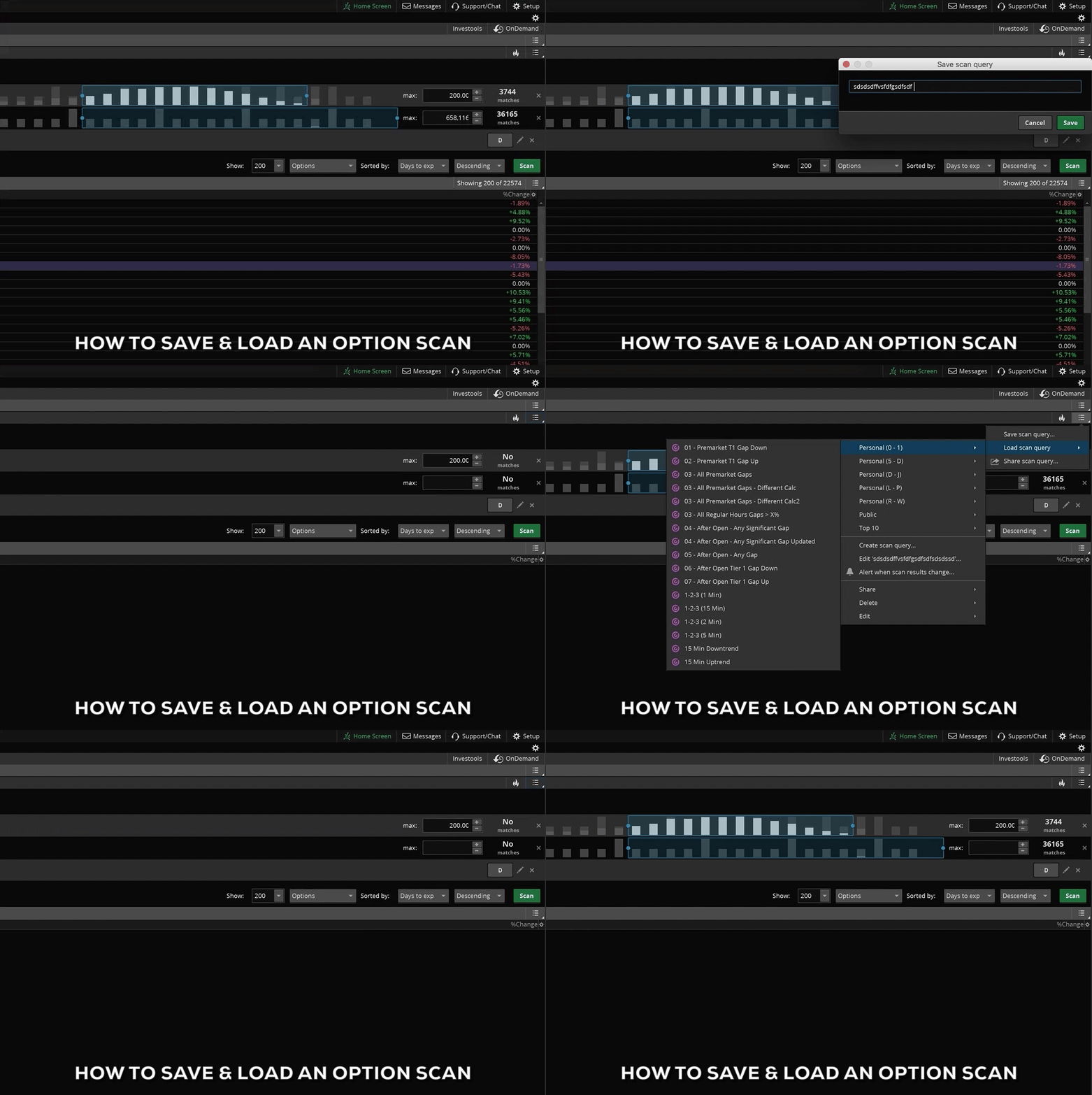
To Save your new options scan, click on the lower menu icon on the top right corner (see gif) and select “Save Scan Query”. Once you’ve given it a name, it will show up in your list of custom scans under the “Personal” section. To load any scan, including this one, simply click the same menu icon and select “Load Scan Query.” Then move your mouse over the Personal section of the menu, which is in alphabetical order, to whatever you named your scan. When you click on the name it will automatically load onto the scanner window below.
Thinkorswim Tutorial – how to save and load a scan in Options Hacker
Hopefully that helps. One of the most confusing things about Options Hacker is that the Study filters don’t work on options, they only work on stocks. You might think since it’s called Options Hacker, when you scan for the closing price or the ATR, it would be calculating those with the options prices. But that’s just not the case currently. You can only use the built in options filters to filter the options, you have to use the other types of filters for the underlying stocks.
For those of you who are more visual learners, I also made a short video where I show you how to set up a customized option scan in think or swim. In it, I show you step by step how to add stock filters, option filters, and custom study filters for the underlying stock. I show you how to narrow and sort the results, and finally, how to save the scan to use later. You can find the full video at the bottom of this post.
Josiah is a stock & futures trader, ThinkScript programmer, Bitcoin maximalist, gold bug, real estate investor, and budding mountaineer. He's also rumored to be an in-shower opera singer. Josiah started Easycators in 2014 and lives with his family near Nashville, TN. xTwitter | YouTube
This website uses cookies to improve your experience. We'll assume you're okay with this, but you can opt-out if you wish. Accept | Read More
Privacy
Privacy Overview
This website uses cookies to improve your experience while you navigate through the website. Out of these, the cookies that are categorized as necessary are stored on your browser as they are essential for the working of basic functionalities of the website. We also use third-party cookies that help us analyze and understand how you use this website. These cookies will be stored in your browser only with your consent. You also have the option to opt-out of these cookies. But opting out of some of these cookies may affect your browsing experience.
Necessary cookies are absolutely essential for the website to function properly. This category only includes cookies that ensures basic functionalities and security features of the website. These cookies do not store any personal information.
Any cookies that may not be particularly necessary for the website to function and is used specifically to collect user personal data via analytics, ads, other embedded contents are termed as non-necessary cookies. It is mandatory to procure user consent prior to running these cookies on your website.