Posted on

Position Sizer gets Complete Overhaul! [VIDEO]

New Features for the ThinkOrSwim Position Sizer

I recently finished up a complete redesign of my ThinkOrSwim Position Sizer, and I wanted to post a quick announcement and go over some of the new features. I’m pretty excited about what I’ve been able to do with it, and I really hope others will find it as useful as I do.

The original implementation was basically a candle high/low position sizer. It calculated entries 1 tick above the high and your stop was 1 tick below the low of the candle, and it would size your position based on that stop size. Additionally, it only worked on stocks. I had originally made it to help me quickly calculate price action entries and exits and get the right number of shares each time, and it did that well for me, but wasn’t very flexible for other traders’ needs.

The new indicator is completely different and vastly more powerful.

thinkorswim position sizer labels
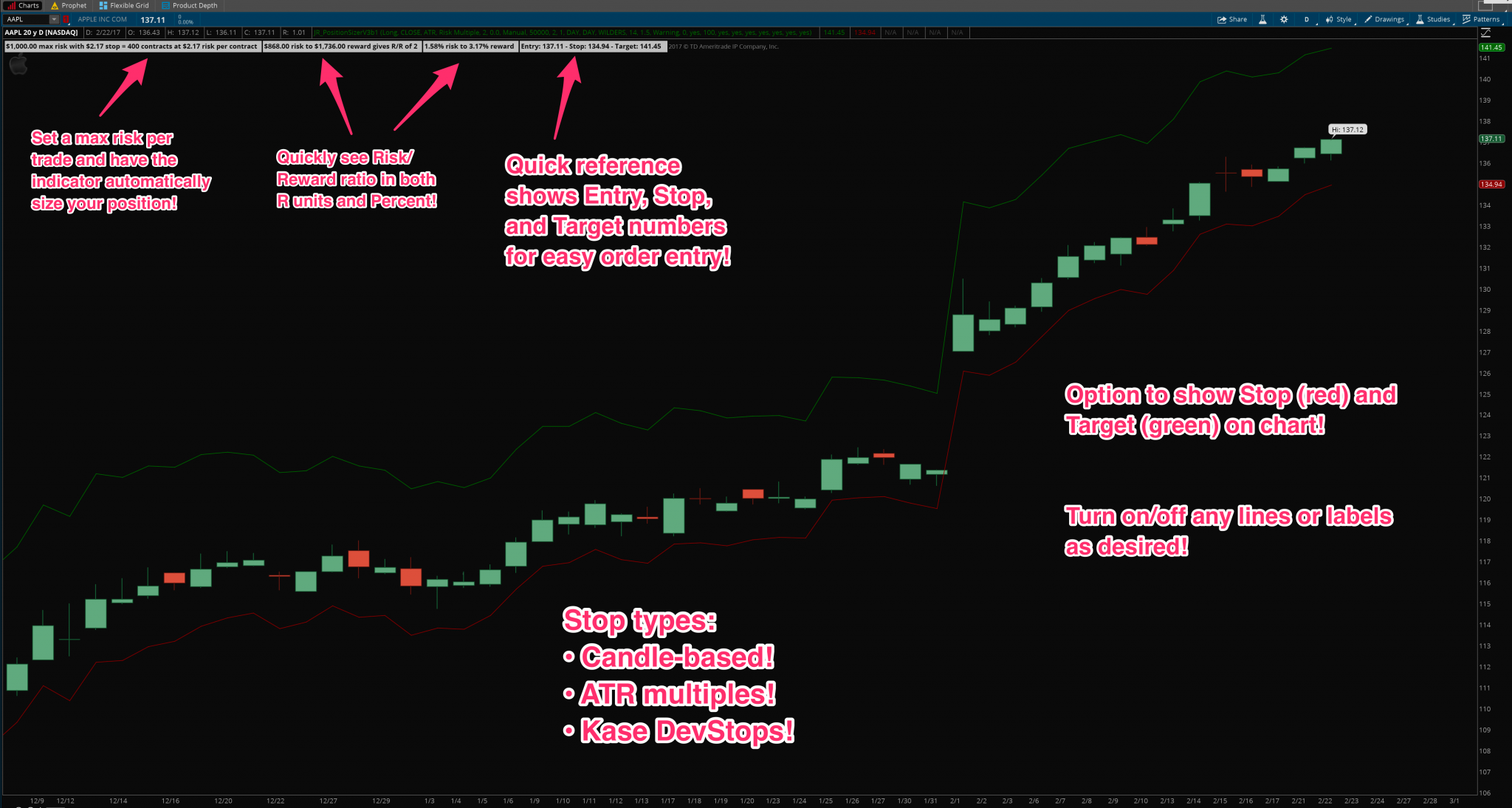
ThinkOrSwim Position Sizer labels

New Features

  • Works on Stocks, ETFs, and now Futures too!
    • Automatically account for the minimum tick size and tick value of futures contracts
  • Choose a percent of your buying power to risk on each trade
  • Script automatically grabs your current account balance and calculates the right amount of shares/contracts to buy based on your predefined risk tolerance
    • Optionally specify a manual/theoretical account balance
    • Specify a buying power multiple (2x or 4x account balance, etc., or just leave at 1x to use no margin leverage)
  • NEW STOP TYPES!
    • Candle/bar price action stops and entries as before
    • New! ATR stops
      • Specify a custom ATR multiple to use for stops
      • Change every aspect of how the ATR is calculated if desired
    • New! Kase DevStops
      • Choose between 4 different DevStop standard deviation levels
  • New entry methods!
    • Choose trade direction, long or short
    • Specify to calculate entries from the close, open, high, or low
    • Add custom padding for slippage or breakout entries to both entries and stops
      • Example 1: enter 1 tick above the high of a candle, stop 1 tick below the low, etc., to simulate a stop-market entry and exit
      • Example 2: assume 1 tick slippage on entries and stops, regardless of entry type
  • New target methods!
    • Choose an automatic target based on a multiple of your risk (stop size).
      • Example: if your stop size is $2, you can specify a 1:2 risk/reward ratio, and it will automatically calculate your target price as $4 above your entry
    • Choose a manual target price for your trade and automatically get the risk/reward in both Risk Units (Rs) or in percentage terms
  • Optionally round the shares or contracts to the nearest 10, 100, or whatever other number you specify
  • Show/hide any labels or lines on the chart
  • Change label and line colors as desired
  • Question mark icon / Tooltip for each option explains every setting in detail

How to Get the Updated Version

A quick note: previous purchasers will OF COURSE get the updated version for free! I really appreciate your support, and the updated links will be waiting for you in the My Account area under My Orders, as with all updates I release. If you have any trouble getting the links, just contact me and I’ll make sure you get setup.

If you haven’t purchased the Think-Or-Swim Position Sizer yet but you think it will be of benefit to your trading, you can pick up your copy here:

Original price was: $129.99.Current price is: $109.99.Add to cart

Screenshots

explanation of each label in the think or swim position sizer indicator


thinkorswim position sizer chart example 1


thinkorswim position sizer kase devstop atr stop volatility stop
think or swim position sizer with Kase DevStops, ATR stops, volatility stops


think-or-swim position sizer with ATR stops


Thinkorswim position sizer chart example


Thinkorswim position sizer chart example and label explanation


thinkorswim position sizer - options settings 1
thinkorswim position sizer – options & settings 1


thinkorswim position sizer - options settings 1
thinkorswim position sizer – options & settings 2


thinkorswim position sizer - options & settings 3
thinkorswim position sizer – options & settings 3


thinkorswim position sizer - options & settings 4
thinkorswim position sizer – options & settings 4

Original price was: $129.99.Current price is: $109.99.Add to cart
Posted on 3 Comments

Tutorial – Scanning with Options Hacker in ThinkOrSwim

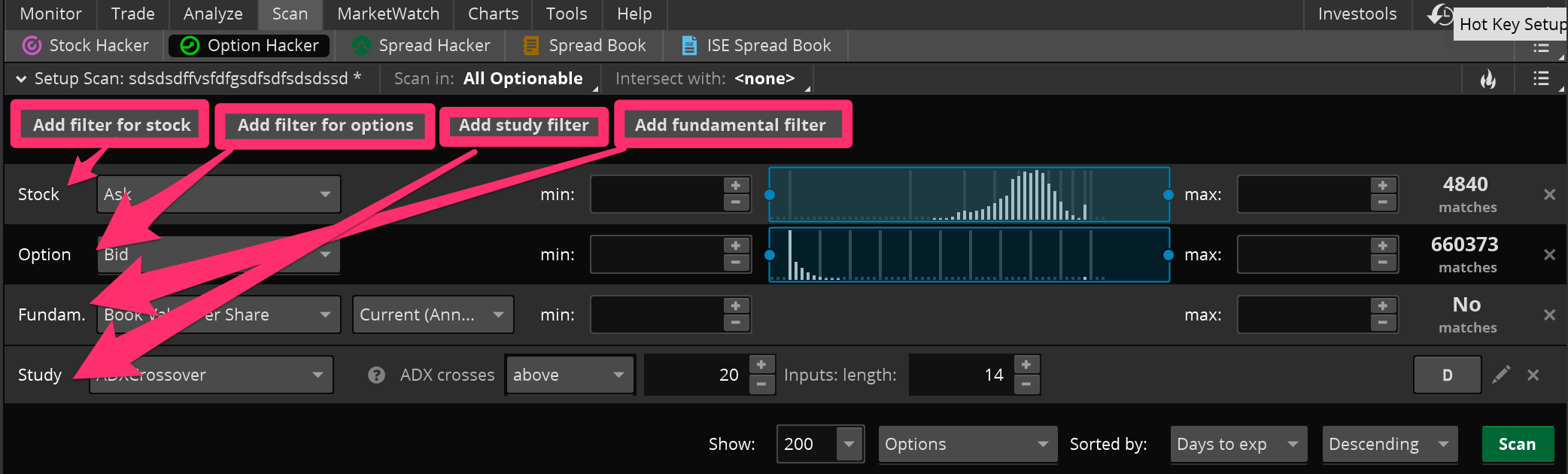
thinkorswim tutorial options hacker how to add filters

Scanning with Options Hacker: A ThinkOrSwim Tutorial

I noticed that there is not very much information out there on the Options Hacker scanner for TOS. Because of that, I wanted to do a quick ThinkOrSwim tutorial on Options Hacker and at least note some of the differences between it and Stock Hacker to clear up some of the confusion. This article will explain the basic features of Options Hacker, and the steps to setting up a custom option scan in Think-Or-Swim. It also notes the differences between the Stock Hacker and Options Hacker scanners.

Options Hacker Differences

So why can’t you just use Stock Hacker? Well, you can, and sometimes it may be easier. But Options Hacker is good for keeping the two types of scans separate and keeping your settings the same when switching back and forth between trading and analyzing the two.

In Options Hacker, you will still be filtering down a list of stocks first of all, just like in Stock Hacker. You can use all your normal filters: price, volume, average volume, price performance, etc. You can even add custom study filters here for the underlying stocks. It’s important to note that the study filters only work for the stocks. You can’t currently program any custom studies to use for option filters. You can use the new Fundamental Filters they just recently made available in TOS. These can be very helpful for you value investors and longer-term traders out there.

After you get the stocks narrowed down to only the ones you would be interested in, now it’s time to filter down the stock options. Here you can add any option attribute available: open interest, delta, price, etc.  You can’t currently scan for option bid-ask spread, but with a custom column I made, you can at least sort the results to show the lowest spreads at the top.

Thinkorswim Options Hacker: add filters
Thinkorswim Options Hacker: How to add different types of stock & option filters to your scan.

Saving Your Option Scan

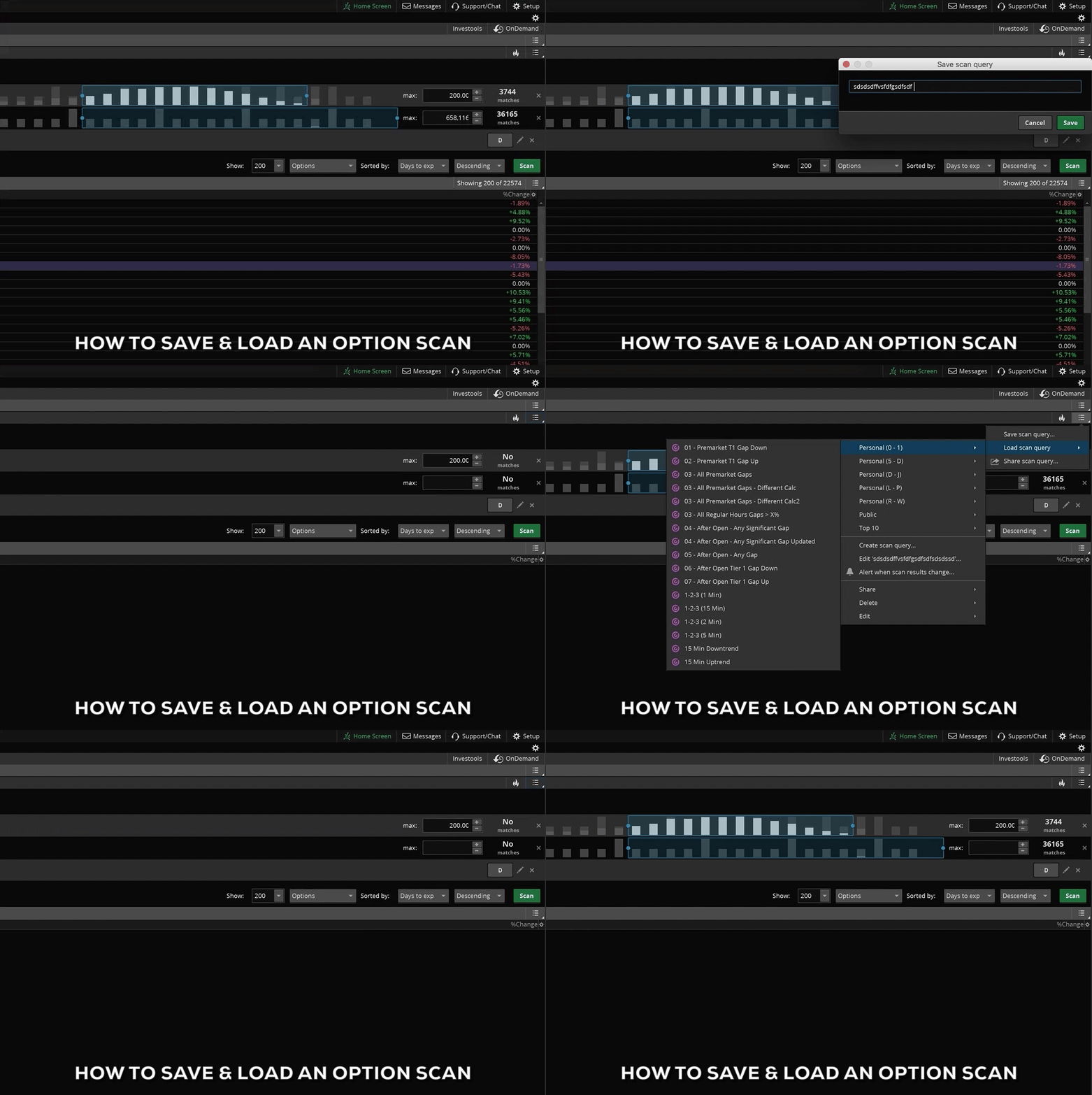
To Save your new options scan, click on the lower menu icon on the top right corner (see gif) and select “Save Scan Query”. Once you’ve given it a name, it will show up in your list of custom scans under the “Personal” section. To load any scan, including this one, simply click the same menu icon and select “Load Scan Query.” Then move your mouse over the Personal section of the menu, which is in alphabetical order, to whatever you named your scan. When you click on the name it will automatically load onto the scanner window below.

Thinkorswim tutorial on Options Hacker - how to save and load a scan
Thinkorswim Tutorial – how to save and load a scan in Options Hacker

Hopefully that helps. One of the most confusing things about Options Hacker is that the Study filters don’t work on options, they only work on stocks. You might think since it’s called Options Hacker, when you scan for the closing price or the ATR, it would be calculating those with the options prices. But that’s just not the case currently. You can only use the built in options filters to filter the options, you have to use the other types of filters for the underlying stocks.

For those of you who are more visual learners, I also made a short video where I show you how to set up a customized option scan in think or swim. In it, I show you step by step how to add stock filters, option filters, and custom study filters for the underlying stock. I show you how to narrow and sort the results, and finally, how to save the scan to use later. You can find the full video at the bottom of this post.